答案,就在旁邊。Answers, right beside you.
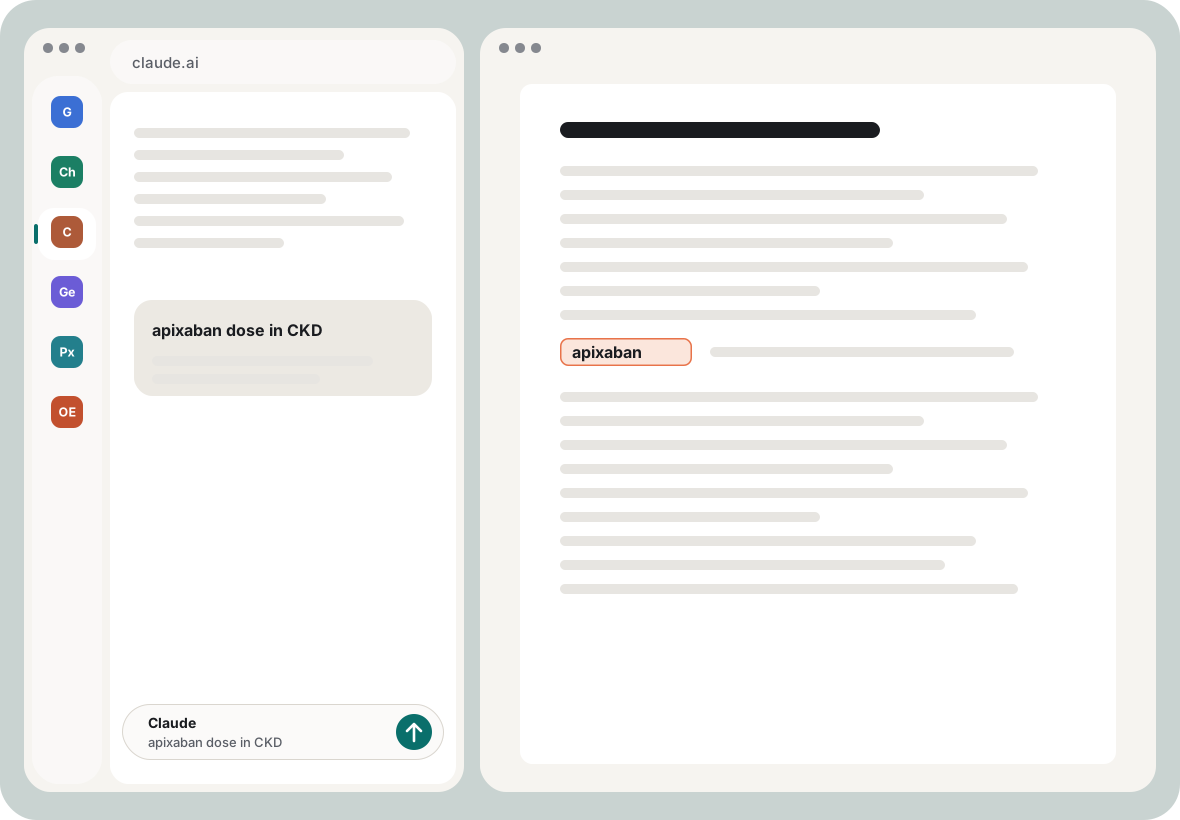
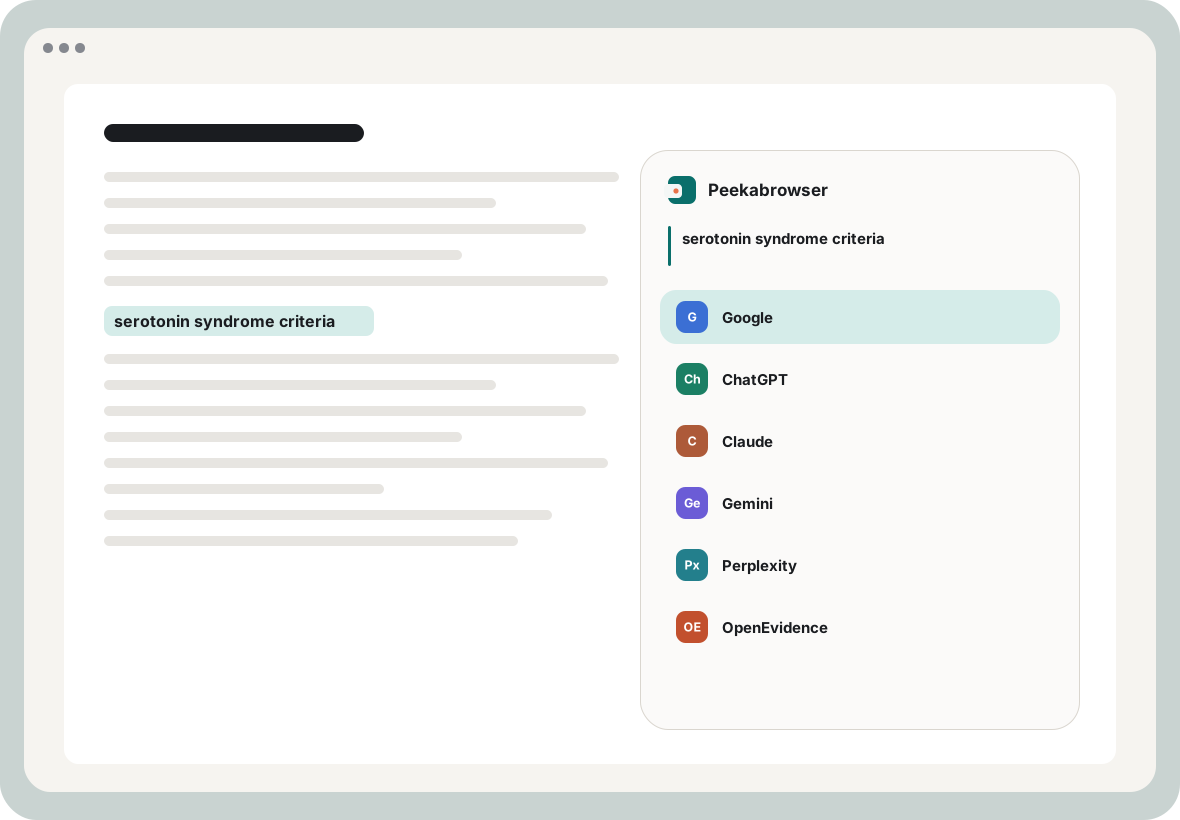
Peekabrowser 是放在 iPad 左側的查詢視窗。看 PDF、讀論文時選一段字,就送到 Google 或你選的 AI,問題已經填好,不用切換 app。Peekabrowser is a lookup window on the left side of your iPad. While you read a PDF or a paper, select a passage and it goes to Google or the AI you choose, question already filled in, no app switching.
不用帳號,所有功能免費,沒有廣告 · iPad 專用 · iPadOS 27 以上 · 也有 Mac 版No account, every feature free, no ads · iPad only · iPadOS 27 or later · Also on the Mac
60 秒看它怎麼用See it in 60 seconds
從你正在讀的 app 送過來Send it from the app you are reading
不用先拷貝,也不用切換 app:選好文字,用你手邊最順的方式送出。No copying first, no app switching: select the text and send it whichever way is closest to hand.
「翻譯」選單The Translate menu
把 Peekabrowser 設為翻譯 app 後,在任何 app 選字點「翻譯」,就能選要送到哪個網站搜尋,連全螢幕 app 也行。Make Peekabrowser your translation app, then select text in any app and tap Translate to pick which site searches it, even over a full-screen app.
Apple Pencil
Apple Pencil Pro 擠壓一下,選取的字就送出;在 Peekabrowser 裡點兩下筆身,搜尋你拷貝的文字。Squeeze Apple Pencil Pro and the selection is sent; double-tap the Pencil in Peekabrowser to search what you copied.
拖曳與分享Drag and Share
把選好的字拖到側欄的目的地圖示上,或點「分享」再點 Peekabrowser,都不用拷貝。Drag the selection onto a destination in the side bar, or tap Share and then Peekabrowser. Nothing is copied.
選字後一個動作Select, then one action
加入「Get Selected Text → Peekabrowser」捷徑後,選字再用輔助觸控的手勢或鍵盤快捷鍵觸發,選取的字就送出。Add the “Get Selected Text → Peekabrowser” shortcut, then select text and trigger it with an AssistiveTouch gesture or a keyboard shortcut.
你選的 AI,自動送出Your AIs, sent for you
第一次打開時勾選要用的 AI;開啟「自動送出」,問題填好就直接送,不用再按一次。Tick the AIs you use the first time you open it; with Auto-submit on, the question is sent as soon as it is filled in.
擺在螢幕左側的視窗A window on the left side
把它拉成視窗放在螢幕左側,旁邊就是你的 PDF 或筆記;也可以收進 Slide Over 或分割畫面。Size it as a window on the left side of the screen, next to your PDF or notes; Slide Over and split view work too.
你的網站,你的帳號Your sites, your accounts
Google 和你勾選的 AI 會先放好,另附維基百科與字典;也能從內建清單加入學術、圖書館、參考資料網站,或用自己的網址,並排序、設定提示語。Peekabrowser 只是打開這些網站,登入用的是你自己的帳號。Google and the AIs you tick come ready, along with Wikipedia and dictionaries; add academic, library and reference sites from the built-in list or your own URL, then reorder them and give each a prompt. Peekabrowser simply opens these sites; you sign in with your own accounts.
搜尋紀錄留在 iPad 上Records stay on your iPad
每次查詢都留在這台 iPad 上,可以搜尋、收藏、把答案存成 Markdown,再拖到筆記裡。Every query stays on this iPad: search it, favourite it, save the answer as Markdown and drag it into your notes.
硬體鍵盤Hardware keyboard
⌘K 打開搜尋選項、⌘⇧V 搜尋拷貝的文字。⌘K opens the search options and ⌘⇧V searches what you copied.
淺色、深色都照顧到Light and dark, both cared for
支援深色模式、減少透明度、減少動態效果與放大字體。Supports Dark Mode, Reduce Transparency, Reduce Motion and larger text.
也在 Mac 上Also on the Mac
Mac 版收在螢幕左緣:按兩次 ⌘C 或三指輕點,選取的字就送出。免費下載,macOS 13 以上,Apple 晶片與 Intel 都支援。The Mac version waits at the left edge of the screen: press ⌘C twice or tap with three fingers and the selection is sent. Free download, macOS 13 or later, Apple silicon and Intel.